
Nequi
Bamboo supports three payment flows with Nequi in Colombia: QR and Push for immediate mobile payments, and Subscriptions for tokenized recurring charges. Subscriptions require a one-time authorization from the payer; once approved, recurring charges are processed automatically with no further action required in the app.
Nequi QR
Enables the payer to scan a QR code using the Nequi app to complete the transaction. The QR code is returned in the purchase response as a base64 image.
Payment Flow
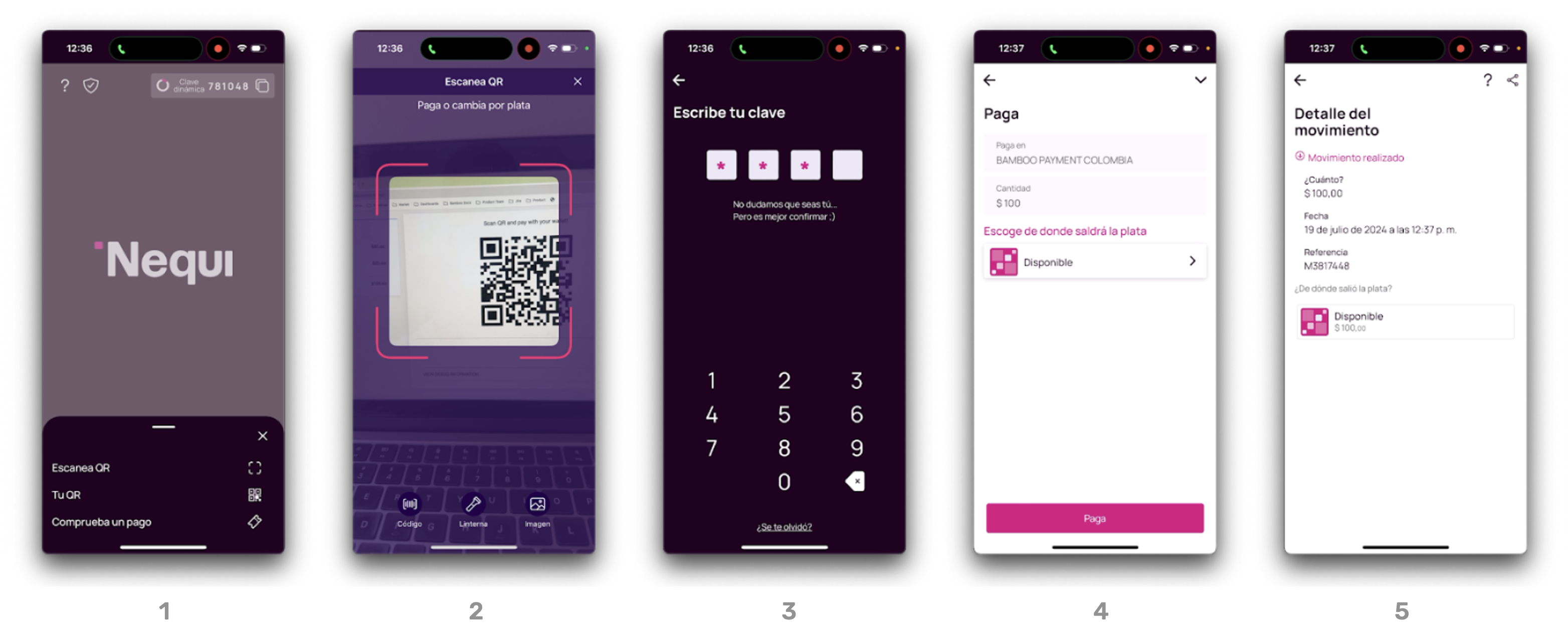
- The payer opens the Nequi app and selects the Scan QR option from the main menu.
- The QR code generated by Bamboo is scanned, containing the payment amount and merchant details.
- Nequi prompts the user to enter their security PIN to confirm the operation.
- The payment summary is displayed; the payer reviews the details and taps Pay.
- A confirmation screen shows the transaction status, amount, date, and reference.
Request Parameters
You need to include specific fields for this payment method to work correctly.
For details on authentication, response formats, and base parameters (amount, currency, etc.), refer to the Purchase operation guide.
| Property | Type | Mandatory? | Description |
|---|---|---|---|
PaymentMethod | string | Yes | Use NQQ. See Payment Methods – Colombia. |
TargetCountryISO | string | Yes | Country code. Must be CO. |
Customer → Email | string | Yes | Payer’s email address. |
Customer → FirstName | string | No | Payer’s first name. |
Customer → LastName | string | No | Payer’s last name. |
Customer → DocumentType | string | No* | Document type. See Document Types – Colombia. |
Customer → DocumentNumber | string | No* | Payer’s document number. Required for refunds if not sent in the purchase. |
Customer → PhoneNumber | string | No | Optional. |
MetaDataIn → PaymentExpirationInMinutes | numeric | No | Defaults to 45 minutes (controlled by Nequi) |
If
DocumentTypeandDocumentNumberare not included in the purchase request, they must be provided in the refund request.
Example Request
To test this endpoint, use the API Reference or the Postman Collection
{
    "PaymentMethod": "NQQ",
    "Order": "CH2023-001",
    "Amount": 100000,
    "Currency": "COP",
    "Description": "Purchase Test",
    "TargetCountryISO": "CO",
    "Customer": {
        "FirstName": "Juan Carlos",
        "LastName": "Silva",
        "Email": "[email protected]",
        "DocumentType":"CC.CO",
        "DocumentNumber":"12345672",
        "PhoneNumber":"3188060418",
        "ReferenceCode":"123123"
    },
    "MetaDataIn": {
        "PaymentExpirationInMinutes": "7200"
    }
}
Response Parameters
The following example shows the response to the request. For additional information about the response structure, refer to the Response parameters section of the Purchase creation guide.
The purchase is created with status PENDING. The QR code is returned in the MetadataOut.Base64Qr field.
| Property | Type | Description |
|---|---|---|
MetadataOut → CodeQr | string | Unique payment identifier associated with the QR. |
MetadataOut → Base64Qr | string | Base64-encoded QR image that can be displayed directly in the checkout. |
MetadataOut → PaymentExpirationDate | string | Date and time when the QR expires. Format: DD/MM/YYYY HH:mm:ss. |
Example Response
{
    "TransactionId": "79632697147789184",
    "Result": "ACTION_REQUIRED",
    "Status": "PENDING",
    "ErrorCode": null,
    "ErrorDescription": null,
    "Created": "2024-08-07T17:51:54.620",
    "AuthorizationDate": null,
    "AuthorizationCode": null,
    "Amount": 100000,
    "Currency": "COP",
    "TaxableAmount": null,
    "Tip": null,
    "Url": "https://api.stage.bamboopayment.com/Purchase/79632697147789184",
    "MetadataOut":
    {
        "CodeQr": "bancadigital-C001-10011-1131320",
        "Base64Qr": "data:image/png;base64,iVBORw0KGgoAAAANSUhEUgA..."
    },
    "MetaDataIn": {
        "PaymentExpirationInMinutes": "7200"
    },
    "Action": null,
     "PaymentMethod": {
        "Brand": "NequiQR",
        "CardOwner": null,
        "Bin": null,
        "IssuerBank": null,
        "Type": "BankTransfer",
        "Expiration": null,
        "Last4": null
    }
}
In the field MetadataOut, the QR code is returned as a base64 image. Add this image inside an image HTML tag.
<img src="data:image/png;base64,iVBORw0KGgoAAAANSUhEUgAAAUoAAAFKCAIAAAD0S4FSAAAACXBIWXMAAA7EAAAOxAGVKw4bAAAGIElEQVR4nO3dQW4jORAAQRuY/3+596rDgliD5hY7J+JuSS0rwUuB9ed5ni+g6M8XECVvyJI3ZMkbsuQNWfKGLHlDlrwhS96QJW/IkjdkyRuy5A1Z8oYseUOWvCFL3pAlb8iSN2Rt5f39/f3Vsr55bud5d+60W7/vuc+8NvVEO6/8RjvfhtMbsuQNWfKGLHlDlrwhS96QJW/IkjdkyRuyDuZ95+7RqcmztalZq6kn2pm02/nMvd/kmtMbsuQNWfKGLHlDlrwhS96QJW/IkjdkyRuyxvK+8w6wHefm4davPHVv2fqVp+bSdvR+k05vyJI3ZMkbsuQNWfKGLHlDlrwhS96QJW/IkvevmZpMmpoPOzfTxm+RN2TJG7LkDVnyhix5Q5a8IUvekCVvyJI3ZMn7B85tvVy7896yc8+78758kjdkyRuy5A1Z8oYseUOWvCFL3pAlb8iSN2SN5d2bPbpzpu1Od37m56n9Jp3ekCVvyJI3ZMkbsuQNWfKGLHlDlrwhS96QdTDvc7dt3encjWhTfztlaqtpj9MbsuQNWfKGLHlDlrwhS96QJW/IkjdkyRuytvJ+nr9rV+O55z03pzU10zb123jsD/3g9IYseUOWvCFL3pAlb8iSN2TJG7LkDVnyhix3rf3A1PTYnbNlb9xqeudnPvf/dXpDlrwhS96QJW/IkjdkyRuy5A1Z8oYseUPWVt53zqXZIPnp3HbRtak73s497xt/G05vyJI3ZMkbsuQNWfKGLHlDlrwhS96QJW/IeuWG0J35oam/XX9Xb5y0u3Nv6bk5vLU7N5M6vSFL3pAlb8iSN2TJG7LkDVnyhix5Q5a8IeuVG0LfuBPzjRNvU69850zbG7epOr0hS96QJW/IkjdkyRuy5A1Z8oYseUOWvCHr4IbQN86HrZ2beTr3vG+84+3c72qtd0+b0xuy5A1Z8oYseUOWvCFL3pAlb8iSN2TJG7LG7lqb2qg4NZl051bTqTm8O6cS185N+J0rxekNWfKGLHlDlrwhS96QJW/IkjdkyRuy5A1ZW3mbAPvvpnZT7jj3/33jK5/7H7lrDfgxeUOWvCFL3pAlb8iSN2TJG7LkDVnyhqyDeU9tcnyjO3ePntsuuvO+5175jTtA15zekCVvyJI3ZMkbsuQNWfKGLHlDlrwhS96QNZb3nVsvd5zbIHnnPW1TmzrXpr6rc9OBO5zekCVvyJI3ZMkbsuQNWfKGLHlDlrwhS96QtZX31KTO+n2nJsDunIiaeuWp73nqPzj1mdec3pAlb8iSN2TJG7LkDVnyhix5Q5a8IUvekDW2IfTOibepTY5T83BvfN4p52baznF6Q5a8IUvekCVvyJI3ZMkbsuQNWfKGLHlD1ljed25jnJqXunOWbupTTT3v2tSuVXetAf9C3pAlb8iSN2TJG7LkDVnyhix5Q5a8IWss76mbq6b2eN65P/TO+bA33rW25q414JfJG7LkDVnyhix5Q5a8IUvekCVvyJI3ZG3l3dtNubYzebYz0zblzunAqTvP3sjpDVnyhix5Q5a8IUvekCVvyJI3ZMkbsuQNWVt596Z8pu48Wzu31fTcHN7O++6YmpabumlvzekNWfKGLHlDlrwhS96QJW/IkjdkyRuy5A1ZB/O2ffLTnXfLndt62fuepyb8dji9IUvekCVvyJI3ZMkbsuQNWfKGLHlDlrwhayzvqZvJ/jZTt5qtvXGb6p1zaWtOb8iSN2TJG7LkDVnyhix5Q5a8IUvekCVvyJL3FXbu8ZqapprapnrnVOKdn0rekCVvyJI3ZMkbsuQNWfKGLHlDlrwhS96QJe//yc5c2s4rnzM1D/f9wt2j5/77a/KGLHlDlrwhS96QJW/IkjdkyRuy5A1Z8oassbyf3B5Pd5791vvuzHj1bnHb4fSGLHlDlrwhS96QJW/IkjdkyRuy5A1Z8oasg3lP3Yl1zrmppqk5rbU7J+3OvfIbn3fN6Q1Z8oYseUOWvCFL3pAlb8iSN2TJG7LkDVlbeffupjrnzjktPj3uWgPeQt6QJW/IkjdkyRuy5A1Z8oYseUOWvCFL3pAlb8iSN2TJG7LkDVnyhix5Q5a8IUvekCVvyPoHCAZLDsfj59kAAAAASUVORK5CYII=" id="qr-code-display" style="max-width: 400px;">Result:
Nequi Push
Sends a push notification to the payer’s Nequi app. The payer can accept or reject the payment directly from their mobile device.
Payment Flow
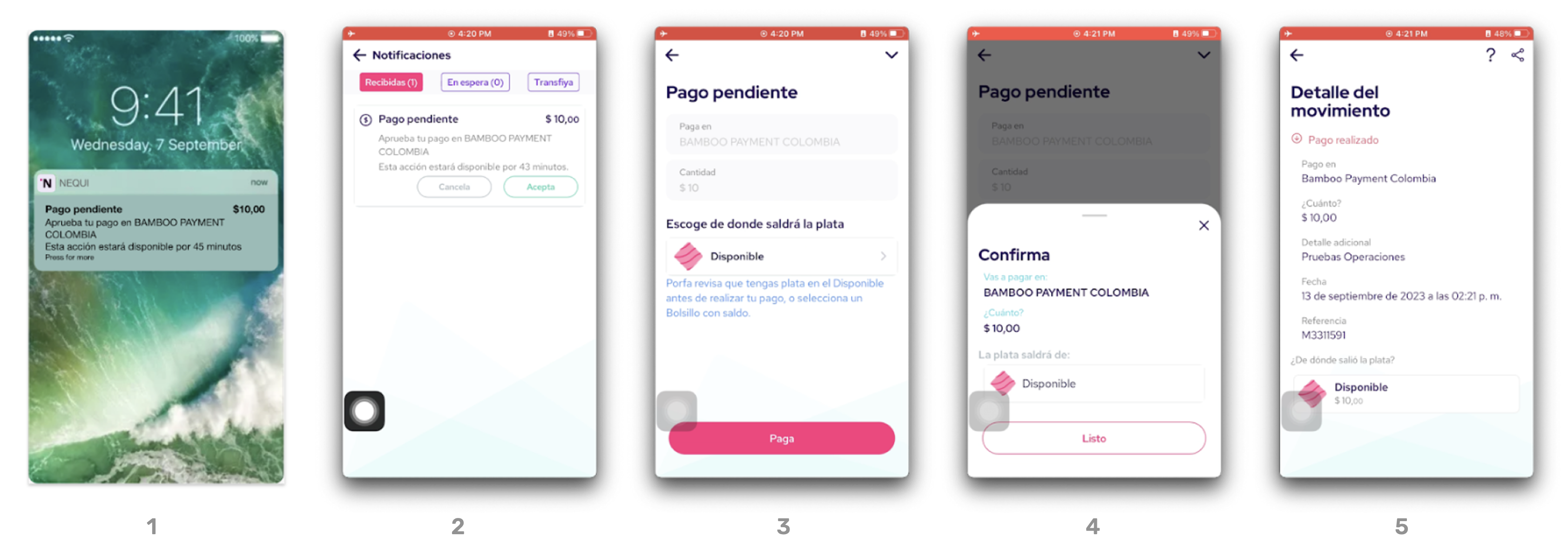
- The payer enters their phone number at checkout. Bamboo sends a payment request to Nequi, which triggers a push notification on the payer’s phone with the transaction details.
- After tapping the notification, the Nequi app displays a pending payment screen with amount and merchant.
- The payer selects the source of funds (e.g., "Disponible") and taps Pay.
- A confirmation screen appears, summarizing the transaction.
- The movement detail is shown, including reference, amount, and confirmation status.
Request Parameters
You need to include specific fields for this payment method to work correctly.
For details on authentication, response formats, and base parameters (amount, currency, etc.), refer to the Purchase operation guide.
| Property | Type | Mandatory? | Description |
|---|---|---|---|
PaymentMethod | string | Yes | Use NQP. See Payment Methods – Colombia. |
TargetCountryISO | string | Yes | Country code. Must be CO. |
Customer → Email | string | Yes | Payer’s email address. |
Customer → FirstName | string | No | Payer’s first name. |
Customer → LastName | string | No | Payer’s last name. |
Customer → DocumentType | string | No* | Document type. See Document Types – Colombia. |
Customer → DocumentNumber | string | No* | Payer’s document number. Required for refunds if not sent in the purchase. |
Customer → PhoneNumber | string | Yes | Must be 10 digits (no country prefix). Example: 3188255555. |
MetaDataIn → PaymentExpirationInMinutes | numeric | No | Defaults to 45 minutes (controlled by Nequi) |
If
DocumentTypeandDocumentNumberare not provided in the purchase, they must be included in refund requests.
Request example
{
    "PaymentMethod": "NQP",
    "Order": "CH2023-001",
    "Amount": 100000,
    "Currency": "COP",
    "Description": "Purchase Test",
    "TargetCountryISO": "CO",
    "Customer": {
        "FirstName": "Juan Carlos",
        "LastName": "Silva",
        "Email": "[email protected]",
        "DocumentType":"CC.CO",
        "DocumentNumber":"12345672",
        "PhoneNumber":"3188060418",
        "ReferenceCode":"123123"
    },
    "MetaDataIn": {
        "PaymentExpirationInMinutes": "7200"
    }
}
Response Parameters
Nequi generates the payment order and sends a push notification to the payer. The transaction remains PENDING until the payer accepts or rejects it from the Nequi app.
See the Response parameters section of the Purchase creation guide for full details.
| Property | Type | Description |
|---|---|---|
Status | string | Current transaction status. Will remain PENDING until payer confirms. |
Action | object | null for this method. |
MetadataOut | object | null for this method. |
Response example
{
    "TransactionId": "79632697147789184",
    "Result": "ACTION_REQUIRED",
    "Status": "PENDING",
    "ErrorCode": null,
    "ErrorDescription": null,
    "Created": "2024-08-07T17:51:54.620",
    "AuthorizationDate": null,
    "AuthorizationCode": null,
    "Amount": 100000,
    "Currency": "COP",
    "TaxableAmount": null,
    "Tip": null,
    "Url": "https://api.stage.bamboopayment.com/Purchase/79632697147789184",
    "MetadataOut": null,
    "MetaDataIn": {
        "PaymentExpirationInMinutes": "7200"
    },
    "Action": null,
     "PaymentMethod": {
        "Brand": "NequiPush",
        "CardOwner": null,
        "Bin": null,
        "IssuerBank": null,
        "Type": "BankTransfer",
        "Expiration": null,
        "Last4": null
    }
}
Nequi Subscriptions
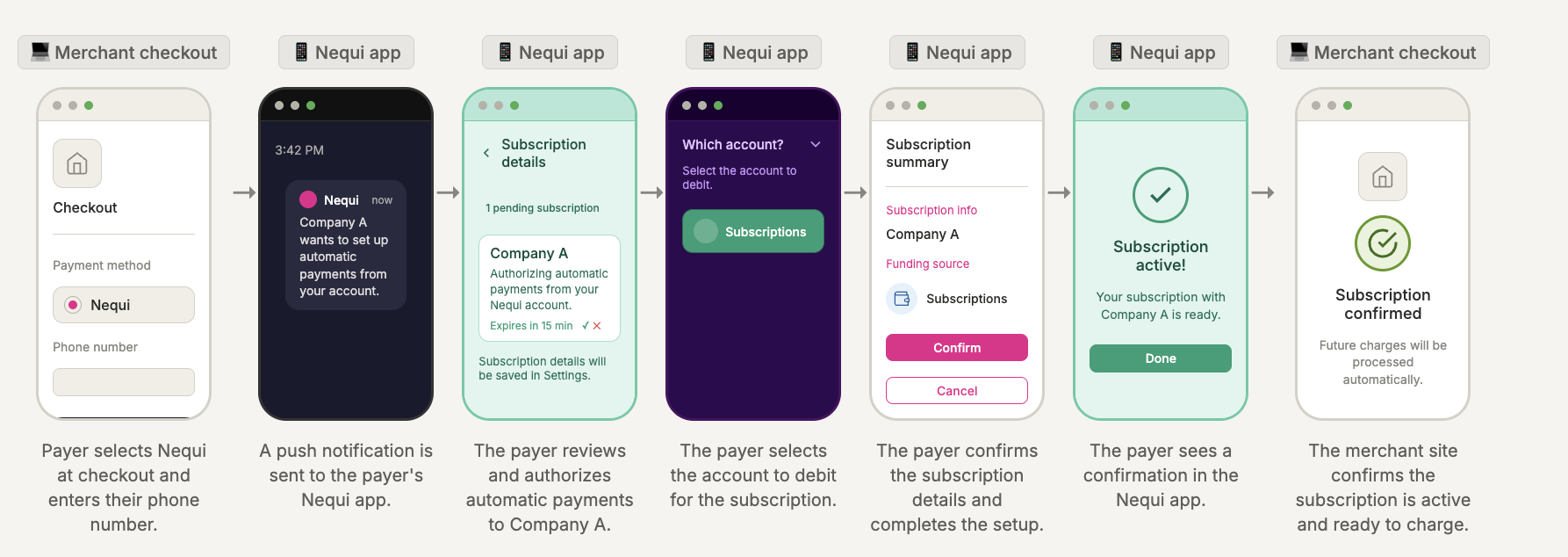
Enables tokenized recurring payments through Nequi. The flow has two stages: first, a subscription is created and linked to the payer's Nequi account (requires a one time user authorization). Then, subsequent charges are processed against that subscription without requiring additional user action in the app.
Payment Flow
Step 1 – Create the Subscription
- The merchant sends a Purchase request with
MetaDataIn.IsSubscription: trueand the payer's required information - The payer receives a push notification in their Nequi app.
- The payer opens the notification and accepts the subscription in the app.
- Bamboo sends a webhook notification to the merchant with
SubscriptionTokenandSubscriptionStatus.
Step 2 – Recurring payments
- The merchant sends a purchase request referencing the
SubscriptionTokenobtained in Step 1. The amount can vary between charges. - Bamboo processes the charge against the active subscription — no additional payer action is required.
- The transaction is confirmed and the response is returned to the merchant via webhook.
Step 1 – Create the Subscription
Request Parameters
You need to include specific fields for this payment method to work correctly.
For details on authentication, response formats, and base parameters (amount, currency, etc.), refer to the Purchase operation guide.
| Property | Type | Mandatory? | Description |
|---|---|---|---|
PaymentMethod | string | Yes | Use NQP. See Payment Methods – Colombia. |
TargetCountryISO | string | Yes | Country code. Must be CO. |
IsSubscription | boolean | Yes | Send true to activate the Nequi subscription flow. |
Customer → Email | string | Yes | Payer’s email address. |
Customer → FirstName | string | No | Payer’s first name. |
Customer → LastName | string | No | Payer’s last name. |
Customer → DocumentType | string | No* | Document type. See Document Types – Colombia. |
Customer → DocumentNumber | string | No* | Payer’s document number. Required for refunds if not sent in the purchase. |
Customer → PhoneNumber | string | Yes | Must be 10 digits (no country prefix). Example: 3188255555. |
Request example
{
    "PaymentMethod": "NQP",
    "TargetCountryISO": "CO",
    "IsSubscription": true,
    "Order": "CH2023-003",
    "Amount": 100000,
    "Currency": "COP",
    "Description": "Purchase Test",
    "Customer": {
        "FirstName": "Juan Carlos",
        "LastName": "Silva",
        "Email": "[email protected]",
        "DocumentType":"CC.CO",
        "DocumentNumber":"12345672",
        "PhoneNumber":"3188060418"
    }
}
Response Parameters
Nequi generates the payment order and sends a push notification to the payer. The transaction remains PENDING until the payer accepts or rejects the one time authorization for the subscription in the Nequi app. The subscription token is returned in the MetadataOut.SubscriptionToken field.
See the Response parameters section of the Purchase creation guide for full details.
| Property | Type | Description |
|---|---|---|
MetadataOut → SubscriptionStatus | string | Current status of the subscription. Possible values: PENDING ACTIVE EXPIRED CANCELLED |
MetadataOut → SubscriptionToken | string | Unique subscription token generated by Bamboo. Use this token in MetaDataIn for all subsequent charges.. |
Response example
{
    "TransactionId": "79632697147789184",
    "Result": "COMPLETED",
    "Status": "PENDING",
    "ErrorCode": null,
    "ErrorDescription": null,
    "Created": "2024-08-07T17:51:54.620",
    "AuthorizationDate": null,
    "AuthorizationCode": null,
    "Amount": 100000,
    "Currency": "COP",
    "TaxableAmount": null,
    "Tip": null,
    "Url": "https://api.stage.bamboopayment.com/Purchase/79632697147789184",
    "MetadataOut": {
        "SubscriptionStatus": "ACTIVE",
        "SubscriptionToken": "318421257555123328",
    },
    "Action": null,
    "PaymentMethod": {
        "Brand": "NequiPush",
        "CardOwner": null,
        "Bin": null,
        "IssuerBank": null,
        "Type": "BankTransfer",
        "Expiration": null,
        "Last4": null
    }
}
Step 2 – Recurring payments
Request Parameters
You need to include specific fields for this payment method to work correctly.
For details on authentication, response formats, and base parameters (amount, currency, etc.), refer to the Purchase operation guide.
| Property | Type | Mandatory? | Description |
|---|---|---|---|
PaymentMethod | string | Yes | Use NQP. See Payment Methods – Colombia. |
TargetCountryISO | string | Yes | Country code. Must be CO. |
IsSubscription | boolean | Yes | Send true to activate the Nequi subscription flow. |
Customer → Email | string | Yes | Payer’s email address. |
Customer → FirstName | string | No | Payer’s first name. |
Customer → LastName | string | No | Payer’s last name. |
Customer → DocumentType | string | No* | Document type. See Document Types – Colombia. |
Customer → DocumentNumber | string | No* | Payer’s document number. |
Customer → PhoneNumber | string | Yes | Must be 10 digits (no country prefix). Example: 3188255555. |
MetadataIn → SubscriptionToken | string | Yes | The SubscriptionToken returned in Step 1.`. |
Request example
{
    "PaymentMethod": "NQP",
    "TargetCountryISO": "CO",
    "IsSubscription": true,
    "Order": "CH2023-004",
    "Amount": 350000,
    "Currency": "COP",
    "Description": "Purchase Test",
    "Customer": {
        "FirstName": "Juan Carlos",
        "LastName": "Silva",
        "Email": "[email protected]",
        "DocumentType":"CC.CO",
        "DocumentNumber":"12345672",
        "PhoneNumber":"3188060418"
    },
    "MetadataIn": {
        "SubscriptionToken": "318421257555123328",
    }
}
Response example
{
    "TransactionId": "79632697147789184",
    "Result": "COMPLETED",
    "Status": "APPROVED",
    "ErrorCode": null,
    "ErrorDescription": null,
    "Created": "2024-08-07T17:51:54.620",
    "AuthorizationDate": null,
    "AuthorizationCode": null,
    "Amount": 350000,
    "Currency": "COP",
    "TaxableAmount": null,
    "Tip": null,
    "Url": "https://api.stage.bamboopayment.com/Purchase/79632697147789184",
    "MetadataOut": {
        "SubscriptionStatus": "ACTIVE",
        "SubscriptionToken": "318421257555123328",
    },
    "Action": null,
    "PaymentMethod": {
        "Brand": "NequiPush",
        "CardOwner": null,
        "Bin": null,
        "IssuerBank": null,
        "Type": "BankTransfer",
        "Expiration": null,
        "Last4": null
    }
}
Discover the API
Once you’re familiar with how to create a purchase, you can test your integration using our API Reference
Updated 5 months ago